
The short version: Luminar browser editing brings Skylum’s AI tools and raw support to any machine with a Chrome tab, no install required. It is fast, genuinely usable for triage and one-off edits, and still not a replacement for a catalog-driven desktop workflow on a 900-frame wedding.
It is late October, the fall color work is done, and I am sitting in a hotel lobby with a laptop that belongs to someone else. My own machine is in a case somewhere behind a front desk. A client wants three frames from yesterday’s shoot, today, flattened and color-corrected, nothing fancy. Normally that is a dead end until I get home.
That is the exact moment browser-based tools stop being a novelty and start being infrastructure.
Skylum has pushed Luminar into the browser with AI editing and raw support in what Fstoppers describes as a slick interface. That is the news. The more interesting question is what it actually changes about how a working photographer moves files from card to client, and whether luminar browser editing earns a slot in a workflow that already has three or four tools fighting for attention.

What Luminar Browser Editing Actually Is
| Feature | Detail |
|---|---|
| Platform | Browser-based, no desktop install required |
| File support | Raw files supported |
| Editing tools | AI-driven editing tools |
| Interface | Streamlined, simplified compared to desktop |
| Developer | Skylum |
Strip away the launch language and the proposition is simple. Luminar browser editing runs Skylum’s AI-driven adjustments inside a web interface, accepts raw files, and presents a pared-back version of the toolset that desktop Luminar users already recognize. No installer. No version mismatch between the studio machine and the travel laptop.
That last part matters more than it sounds. Half the friction in a modern photo workflow is not the editing. It is the fact that your tools live in one place and you frequently do not.
The streamlined interface is a deliberate choice rather than a limitation to apologize for. Browser tools that try to clone a full desktop application end up slow and cluttered, and the people who need them most are the ones working on borrowed hardware with a mediocre connection. A smaller, faster surface is the correct call here.
Does Luminar Browser Editing Handle Raw Files Properly?
Raw support is the hinge the entire product swings on. A browser editor that only takes JPEGs is a toy for social media crops. One that ingests raw is a working tool, because raw is what comes off the card and raw is what carries the highlight and shadow latitude you actually need when a reception hall was lit by two uplights and a prayer.
Luminar browser editing accepts raw, and that single fact moves it out of the toy category. A file that still holds its full tonal range in the browser means the recovery moves you would make at a desk are available on a hotel lobby laptop.
Here is the honest caveat. Raw files are large, browsers are not native applications, and the upload step is a real part of the workflow now in a way it never was on desktop. Luminar browser editing is bound by whatever connection you are sitting on. On hotel wifi, that is the bottleneck, not the software.
I learned this the hard way with a different cloud tool a couple of years back. I started an upload of a full card thinking I would have proofs out before dinner, and the progress bar was still crawling when I gave up and went to bed. That was my error, not the software’s. Browser tools reward selective uploads. Pull the eight frames you need, not the four hundred you shot.
Luminar Browser Editing Versus a Desktop Workflow
This is the comparison every photographer is going to make, so let’s make it properly instead of pretending it is close.
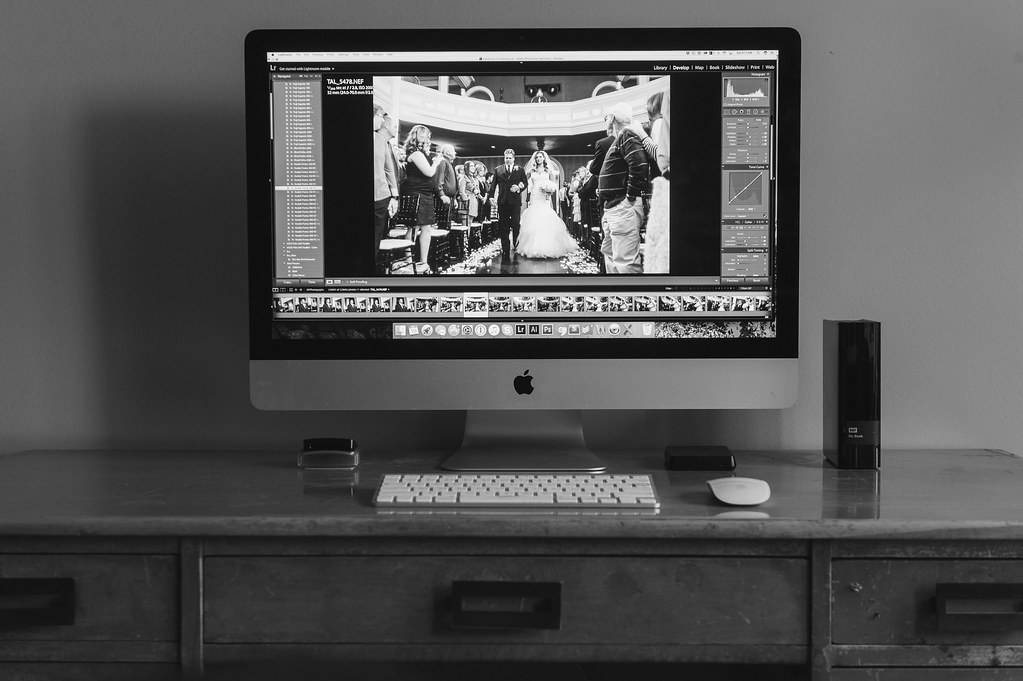
A desktop workflow in Lightroom, Capture One, or desktop Luminar is built around a catalog. Catalogs are the unsexy backbone of professional work: keywording, collections, virtual copies, batch sync across three hundred frames, export presets tuned for a specific lab. None of that is what luminar browser editing is for. Expecting it to be is like being disappointed a pocket knife is not a chef’s knife.
What luminar browser editing does well is the short, urgent job. A handful of frames. A client who needs something today. A machine that is not yours. A second shooter who needs to send you a preview from the road.
Where it falls short is volume. The catalog-driven parts of a wedding or event delivery are not going to migrate into a browser tab, and Skylum does not appear to be claiming they will. The streamlined interface signals the intended scope pretty clearly.
There is a third category worth naming, and it is the one I find most interesting: the photographer who does not have a powerful machine at all. Luminar browser editing shifts processing load away from local hardware. For someone shooting on a camera that costs more than their computer, which is more common than the gear forums admit, that is a genuinely meaningful change.
Who Luminar Browser Editing Is Built For
Luminar browser editing is best suited to three groups.
- Traveling shooters: Anyone who regularly edits away from their primary workstation, on hotel or borrowed hardware, where installing software is impractical or impossible.
- Light-volume creators: Portrait, product, and content shooters delivering dozens of frames rather than hundreds, where a catalog adds overhead instead of removing it.
- Hardware-constrained photographers: Those running older or underpowered machines where local raw processing is the actual bottleneck in their day.
It is a weaker fit for high-volume event work, for anyone deep into a Capture One tethering setup, and for photographers whose entire archive logic depends on a local catalog they have spent years building. Switching that is not a software decision, it is a life decision.
Worth noting the context here. Skylum has been steadily rebuilding how it talks to photographers, and I dug into that shift in our piece on Skylum’s AI sky replacement pivot. The browser release reads like a continuation of that repositioning rather than a one-off experiment.
The AI Tools, Honestly

AI editing is the headline feature and it is where expectations need managing.
Skylum’s AI adjustments are strongest as a starting point. They get a file to seventy percent fast, which is exactly what you want when the job is triage. They are weakest when applied uncritically across a set with mixed lighting, which is the failure mode every AI editing tool shares and which no amount of model improvement has solved yet.
The craft lesson here is older than any of these tools. I once let an automated correction run across a reception set and shipped a batch where the skin tones drifted warm across half the frames because the AI read the uplighting as ambient. The client noticed. I noticed harder. Automation gets you to a draft, never to a delivery.
Applied that way, luminar browser editing is useful. Hand it a single raw file, let the AI set a baseline, then override what it got wrong. That is a reasonable loop and it is fast.
If you are weighing AI editing tools against one another more broadly, our Evoto 8.0 review covers the culling-and-retouch side of that market, and the Eddie AI review gets into whether pay-as-you-go pricing makes sense for working shooters. Different problems, same underlying question: how much judgment are you willing to outsource?
Where Luminar Browser Editing Fits Against Lightroom
Adobe is the incumbent and pretending otherwise helps nobody. Most working photographers reading this already pay Adobe monthly, and the recent Lightroom update with tethering upgrades and AI editing tools narrowed some of the gaps that third-party tools used to exploit.
So luminar browser editing is not going to displace a Lightroom catalog. That is not the fight. The fight is for the gap Lightroom handles awkwardly: fast access on hardware you do not control, with no install and no sync anxiety.
That gap is real and it is bigger than Adobe seems to think. Every photographer I know has had the moment where the work is urgent and the tools are three hundred miles away. Luminar browser editing is pointed directly at that moment, and it hits it.
Does that justify another subscription on top of the ones you already carry? Depends entirely on how often that moment happens to you. For a studio shooter who edits at the same desk every day, probably not. For a traveling event photographer, luminar browser editing might pay for itself the first time it saves a deadline.
Strengths and Limitations
- Strengths: Raw support in a browser, no installation requirement, streamlined interface that loads fast, AI adjustments that produce usable baselines quickly, processing that does not depend on local hardware power.
- Limitations: No catalog-depth organization, upload speed becomes a workflow bottleneck on weak connections, AI corrections drift across mixed-lighting sets, not designed for high-volume event delivery.
What to Take From This
- Treat it as a supplement, not a migration: Luminar browser editing solves the away-from-desk problem, not the archive problem.
- Upload selectively: Pull the handful of frames the job needs. Browser tools punish full-card dumps.
- Use the AI as a draft stage: Baseline fast, then override. Never ship an automated correction unreviewed.
- Judge it by your travel frequency: The value of luminar browser editing scales directly with how often you work on hardware that is not yours.
- Keep your catalog where it is: Nothing here is a reason to tear down a working desktop system.
The Verdict
Luminar browser editing is a genuinely well-scoped product, which is rarer than it should be. It does not pretend to be a desktop replacement, it supports raw where it counts, and the streamlined interface is a feature rather than a compromise.
Consider it if you travel, if you deliver small sets, or if your computer is the weakest link in your kit. Skip it if your entire working life happens at one desk with a catalog you trust.
The broader shift is the one worth watching. Editing is leaving the installed-application era, and luminar browser editing is one of the clearer signals yet that raw processing no longer requires a particular machine. For a working photographer in late 2026, that is worth more than any single slider.
FAQ
Does luminar browser editing support raw files?
Yes. Skylum’s browser release includes raw support alongside its AI editing tools, which means files straight off the card retain their tonal latitude for highlight and shadow recovery inside the browser.
Can luminar browser editing replace Lightroom?
No. It lacks catalog-based organization, batch sync across large sets, and archive management. It targets quick edits on machines without installed software, not full high-volume event delivery workflows.
Is an internet connection required for luminar browser editing?
Yes, since it runs entirely in a browser. Upload speed becomes part of the workflow, so selective uploads of a few frames work far better than dumping an entire memory card.
Who benefits most from luminar browser editing?
Traveling photographers working on borrowed hardware, low-volume portrait and product shooters, and anyone whose computer is underpowered for local raw processing. Studio shooters with established desktop catalogs benefit least.
Photo: Leeloo The First